Myrouter × LangBot Configuration Guide
1. Obtain an API Key
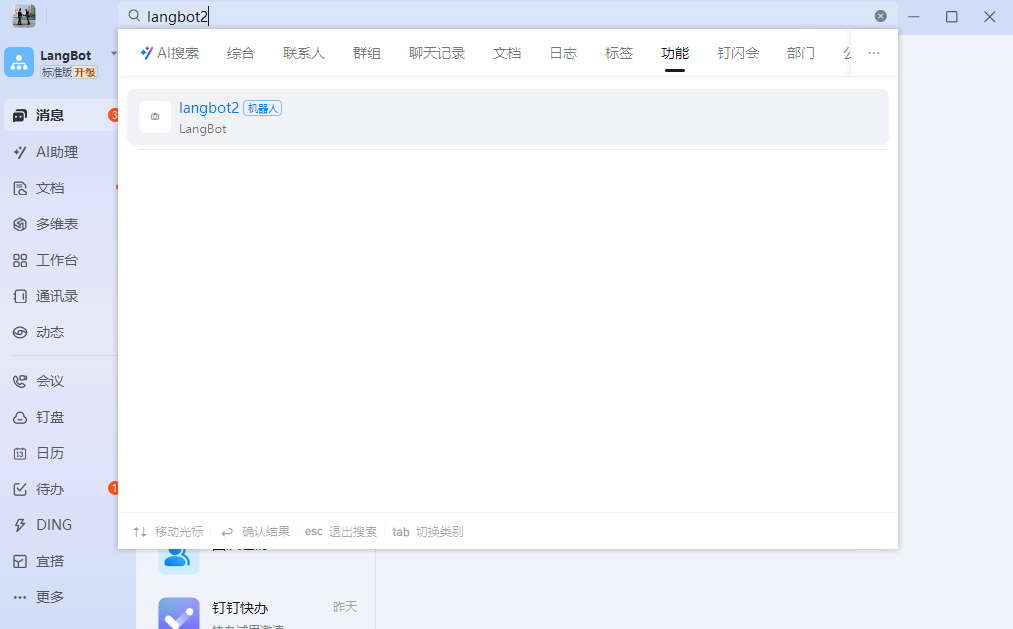
Visit Myrouter to register and log in. Enter invitation code [YGHNZ0] during registration to receive a $2 sign-up bonus.(1) Obtain an API Key
Open the [API Key] management page, click the Add button, enter a custom key name, and generate an API key.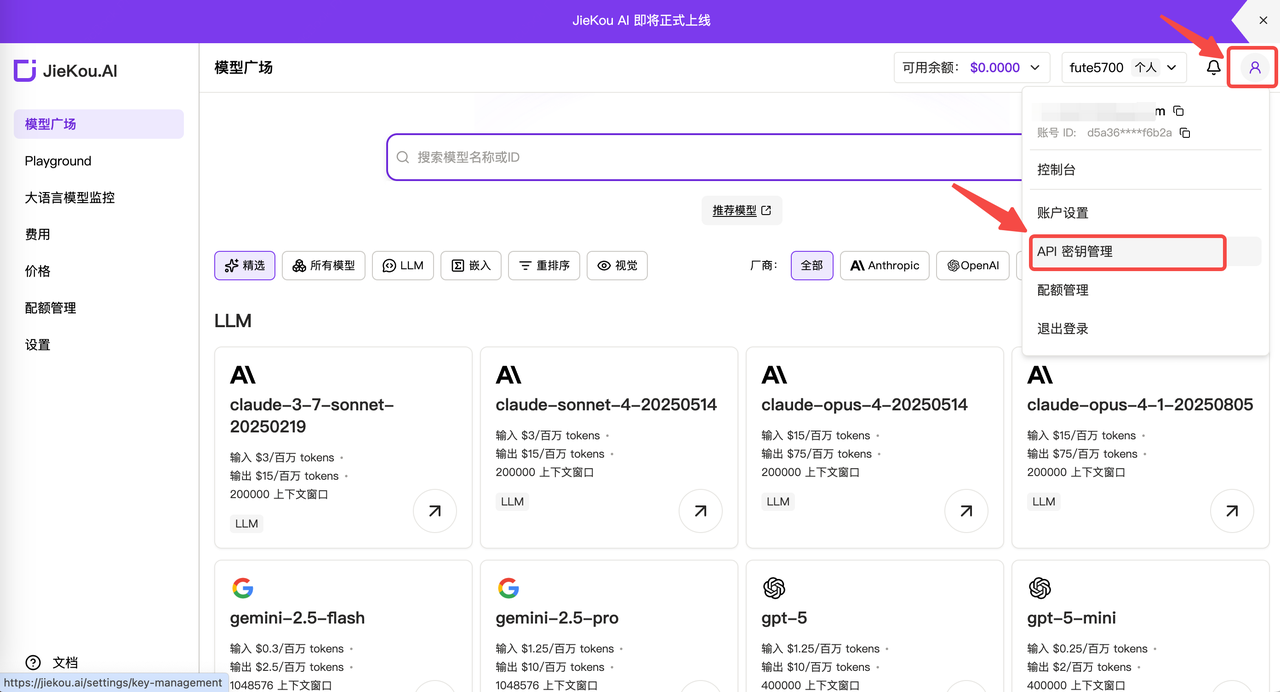
(2) Generate and Save the API Key
!! Note: The key is stored encrypted on the server and cannot be viewed again after creation. Please save your key securely. If lost, you will need to delete it from the console and create a new one.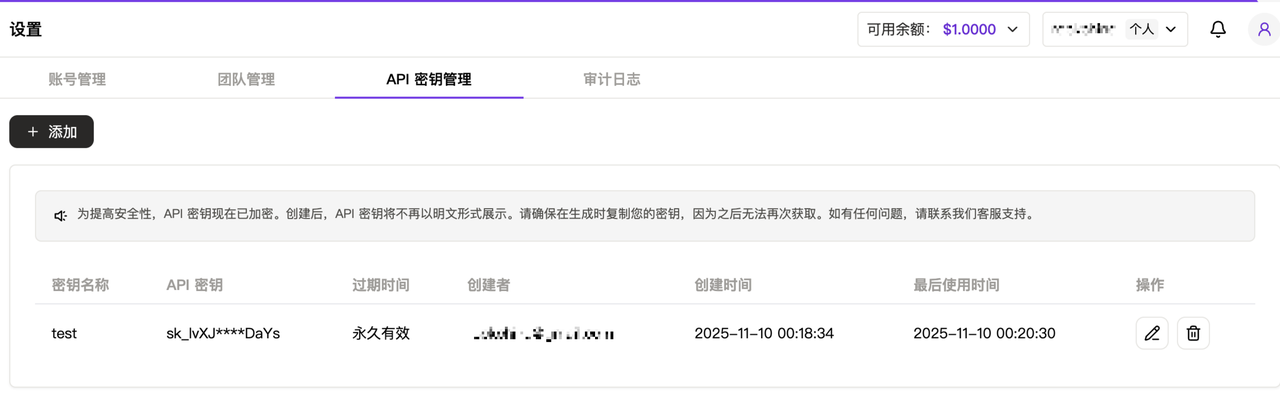
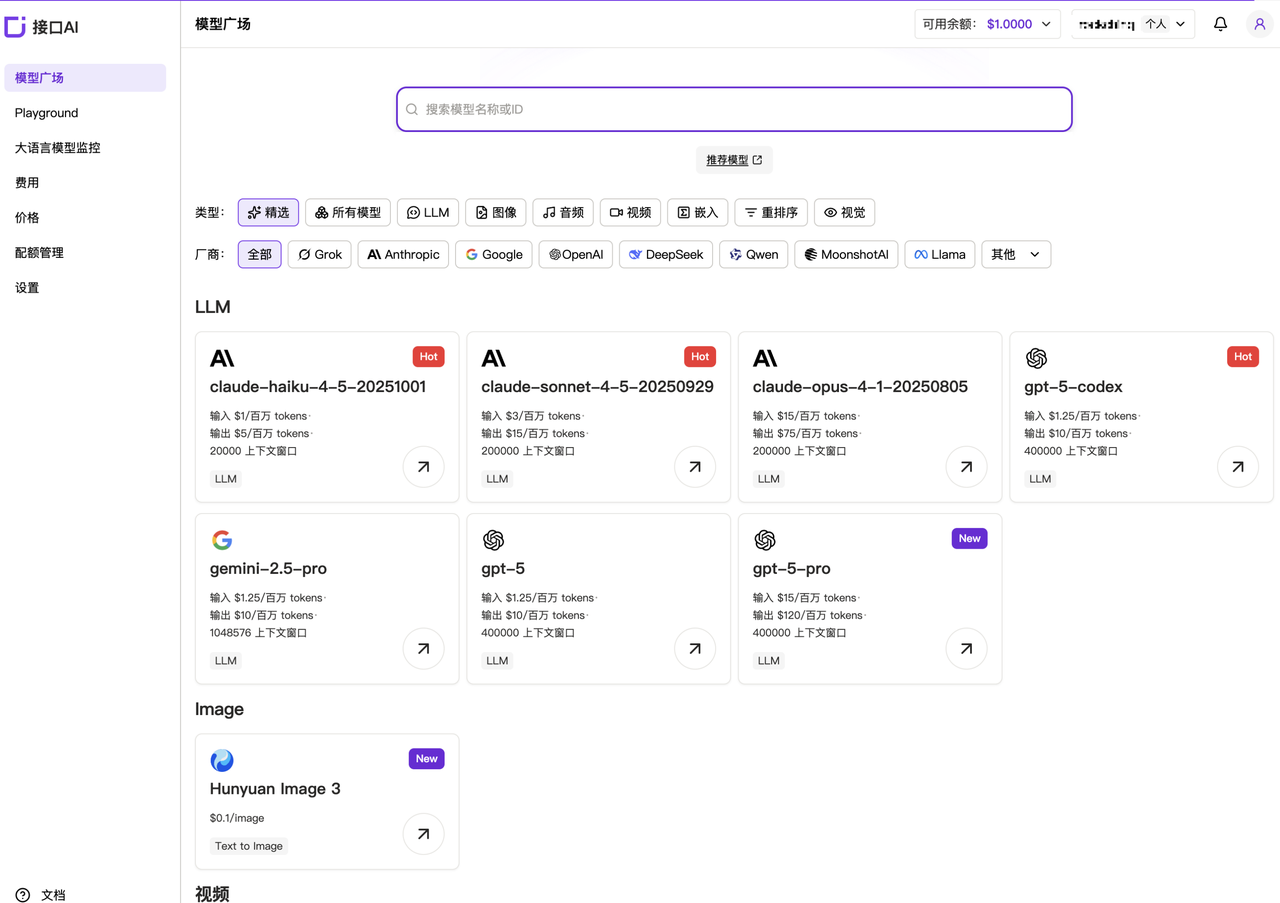
(3) Obtain the Model ID
Recommended Model IDs:- Claude-sonnet-4-5
- Gpt-5
- Gpt-4o
- Gemini-2.5-pro
2. Deploy and Configure LangBot
LangBot can be conveniently deployed on Windows, Mac, and Linux via Docker. Before deployment, please ensure Git, Docker, and Docker Compose are installed. Project URL: https://github.com/RockChinQ/LangBot(1) Deploy LangBot via Docker
Clone the project with Git:- If your host is located in mainland China, you can change the URL in the command above from
https://github.com/langbot-app/LangBottohttps://gitcode.com/RockChinQ/LangBotto use a domestic mirror. - If your host is located in mainland China, you can consider changing the image name in the
docker-compose.yamlfile todocker.langbot.app/langbot-public/rockchin/langbot:latestto use the provided mirror. - It is recommended to set up Docker container proxy to ensure smooth network access during LangBot runtime.
(2) Create Configuration Files
On first startup, a prompt to create configuration files will be displayed. Please continue following the file configuration instructions. The container maps port 5300 for WebUI access. You can visit http://127.0.0.1:5300 to view the WebUI. Ports 2280-2290 are also mapped for reverse connection by messaging platform adapters using the OneBot protocol.(3) Configure the Conversation Model
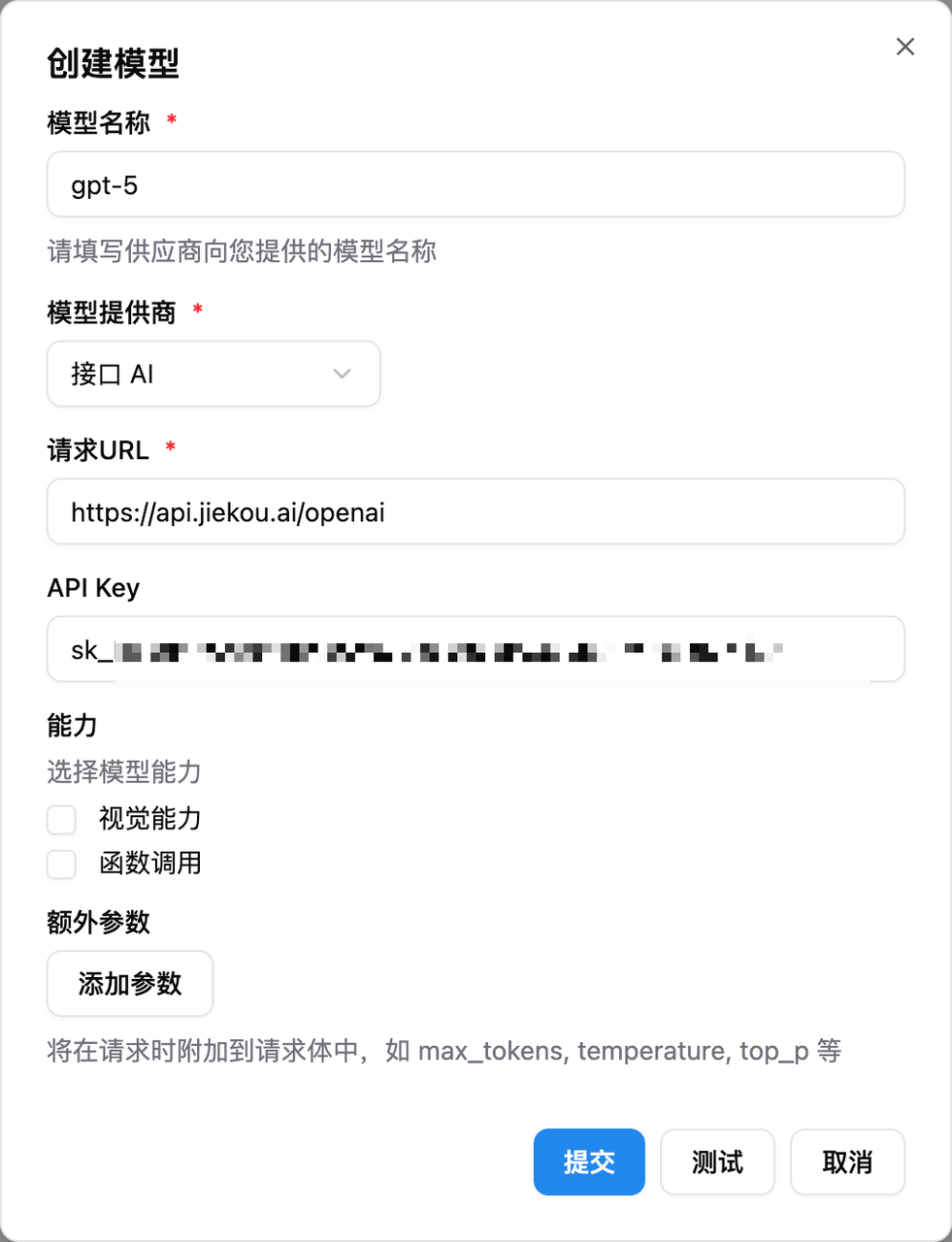
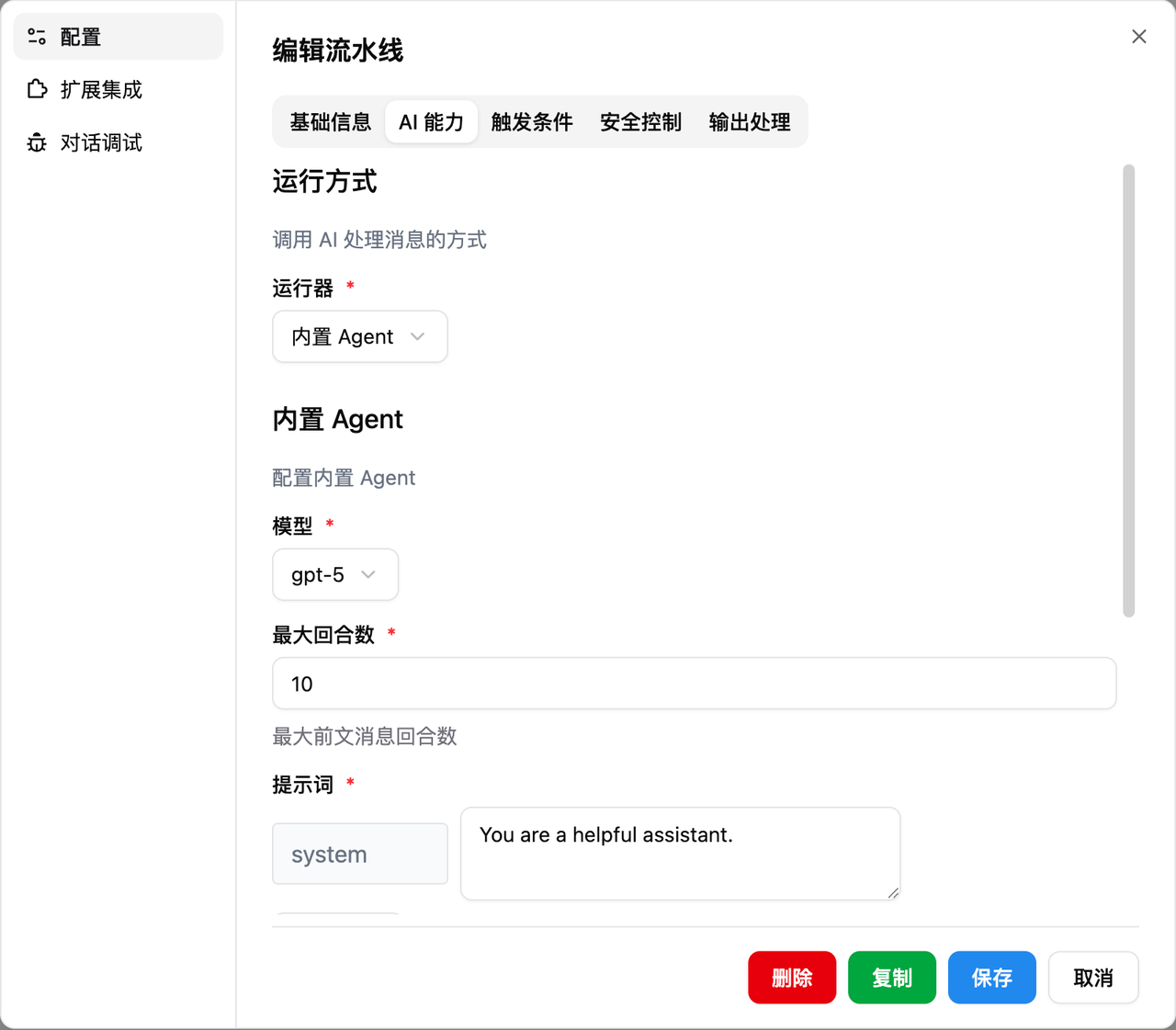
Open LangBot, click Model Configuration, and select Myrouter as the model provider. Configure the model with the following information:- Model Name: The desired model name copied from the Myrouter website
- Model Provider: Myrouter
- Request URL: https://api.myrouter.ai/openai
- API Key: The key saved from the Myrouter website
3. Connect to a Platform
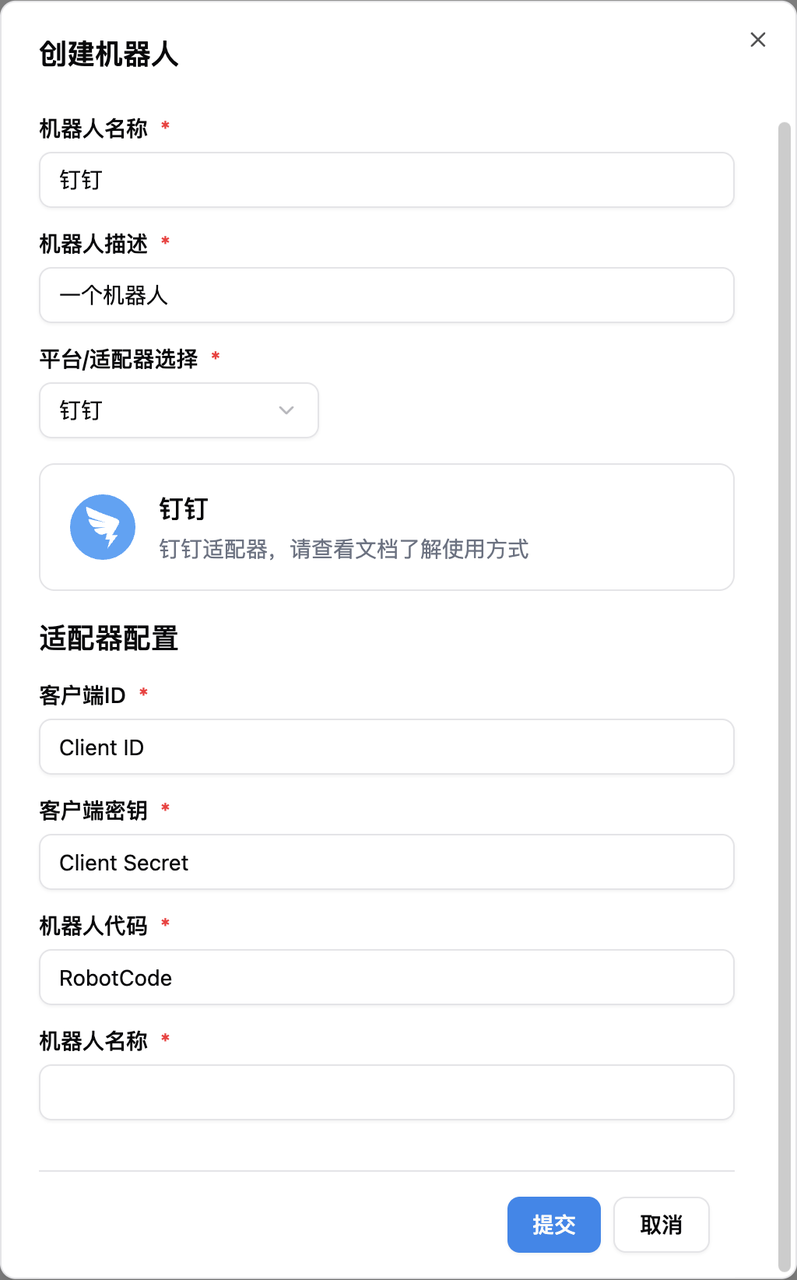
LangBot supports connecting chatbots to platforms such as QQ, WeChat Official Accounts, and Feishu (Lark). Using DingTalk as an example, here is the LangBot integration tutorial.(1) Create a Bot
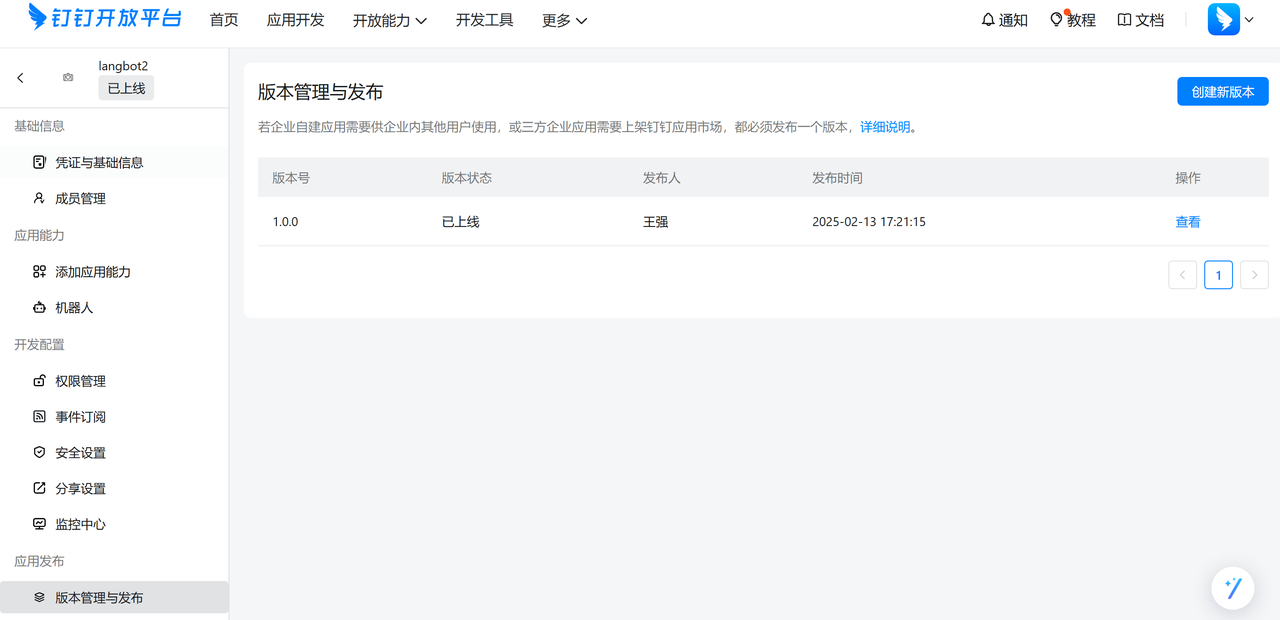
Go to the DingTalk Developer Portal, log in, and enter your organization. URL: https://open-dev.dingtalk.com/ Click [App Development] at the top, select [Create Application], fill in the bot’s basic information, and save.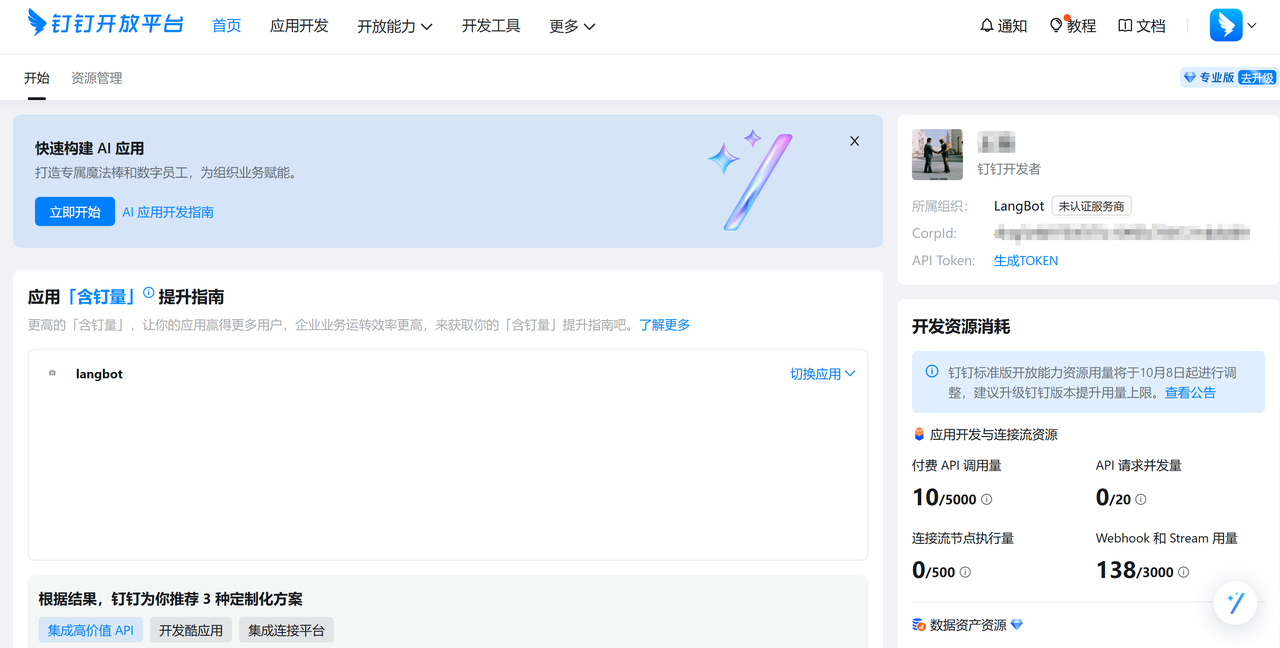
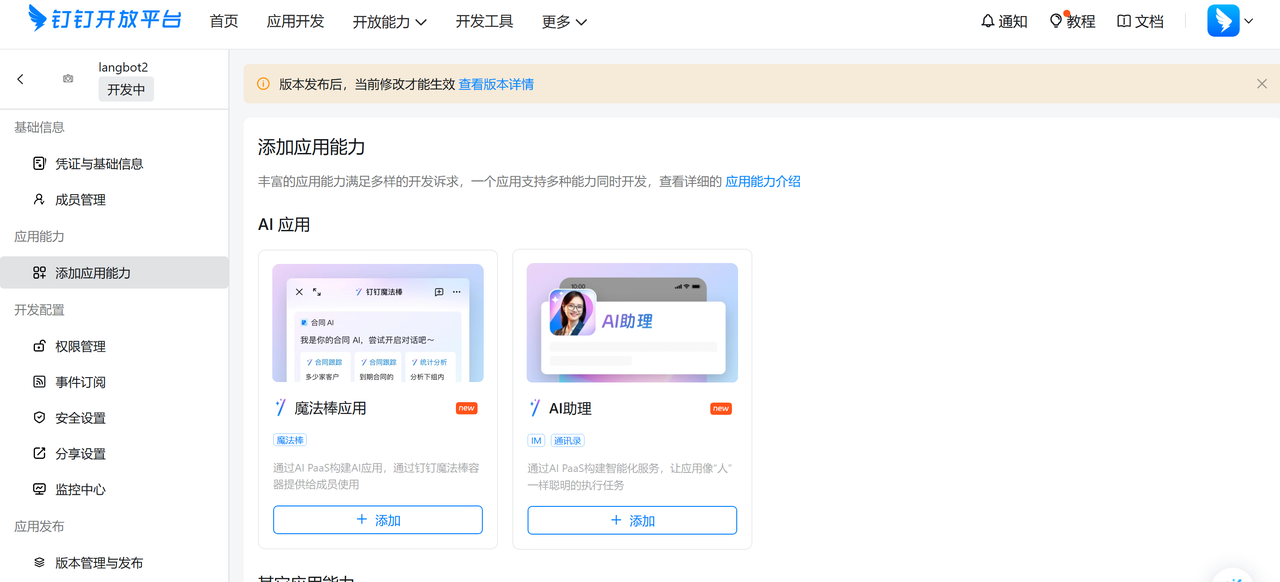
(2) Configure the Bot
Select [Add App Capability] to add bot functionality to the application. Click the [Bot] tab on the left, fill in the bot configuration information, complete the name, description, message name, and other basic settings. Once configured, click Publish.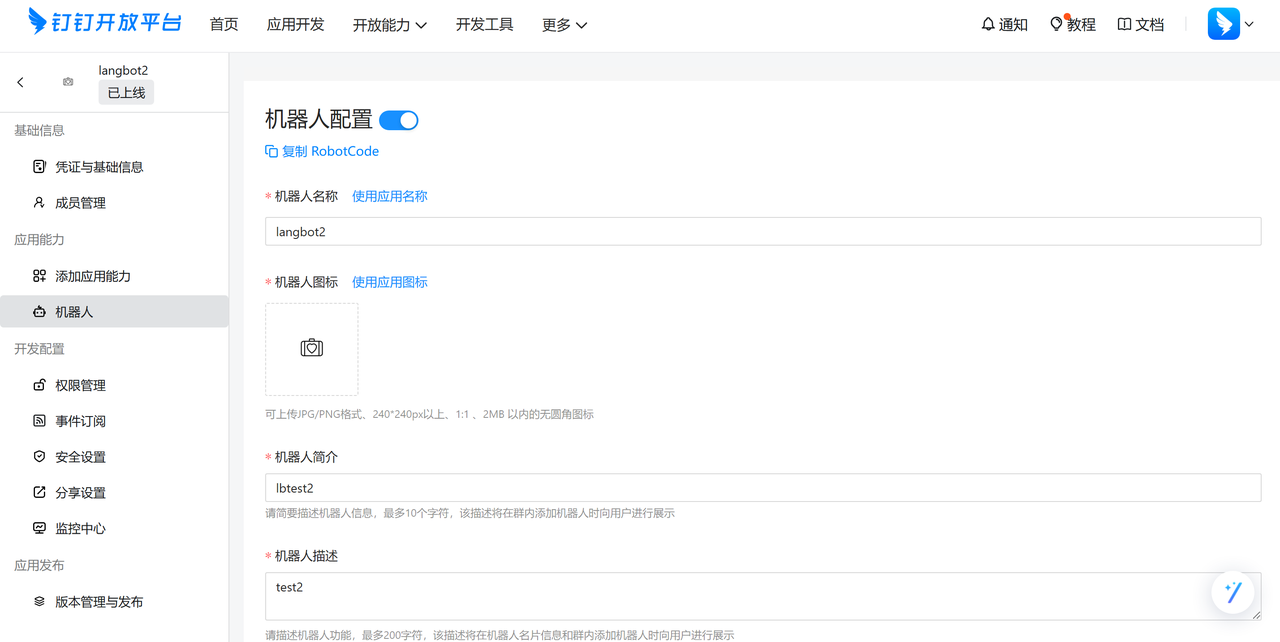
(3) Add the Bot
Search for the bot name you just configured in DingTalk and click on it to start chatting.