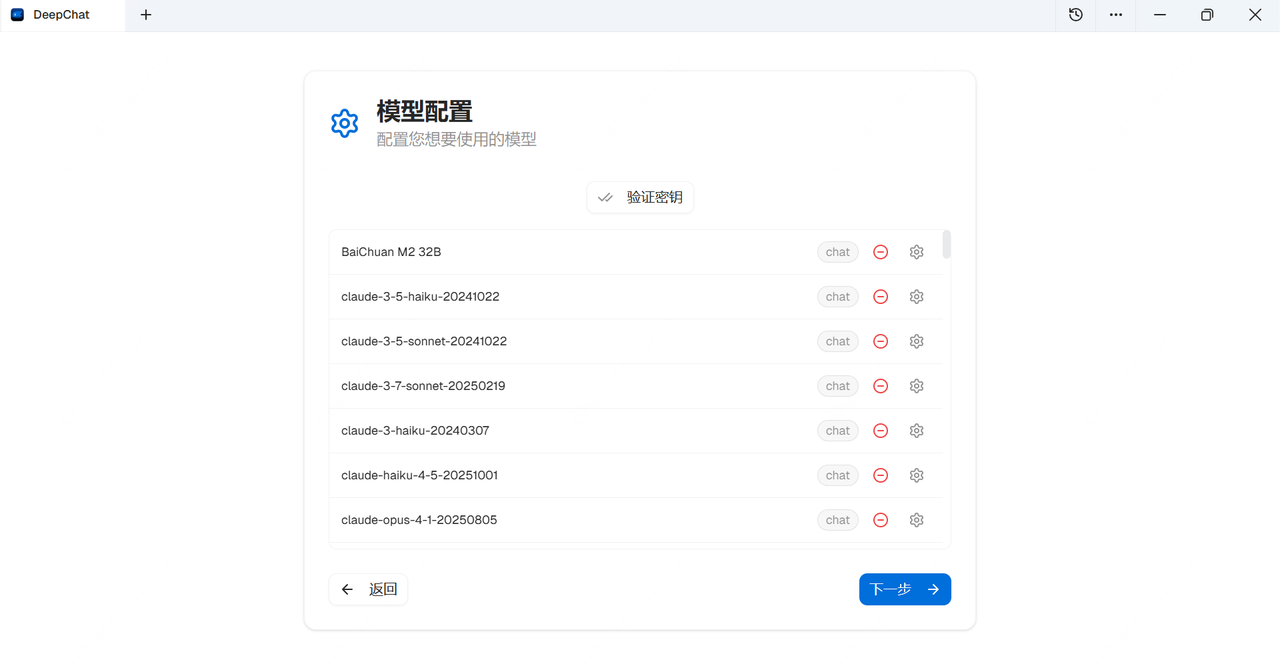
- Personal knowledge management: Integrate personal documents, notes, and knowledge to enable intelligent Q&A and content generation.
- Enterprise knowledge base: Connect internal enterprise knowledge resources to provide team members with intelligent information retrieval.
- Custom conversation scenarios: Create domain-specific dialogue experiences through flexible model configuration and prompt engineering.
Myrouter × DeepChat Configuration Guide
Prerequisites
(1) Obtain an API Key
Register and log in to Myrouter. Enter invitation code [YGHNZ0] during registration to receive a $2 sign-up bonus.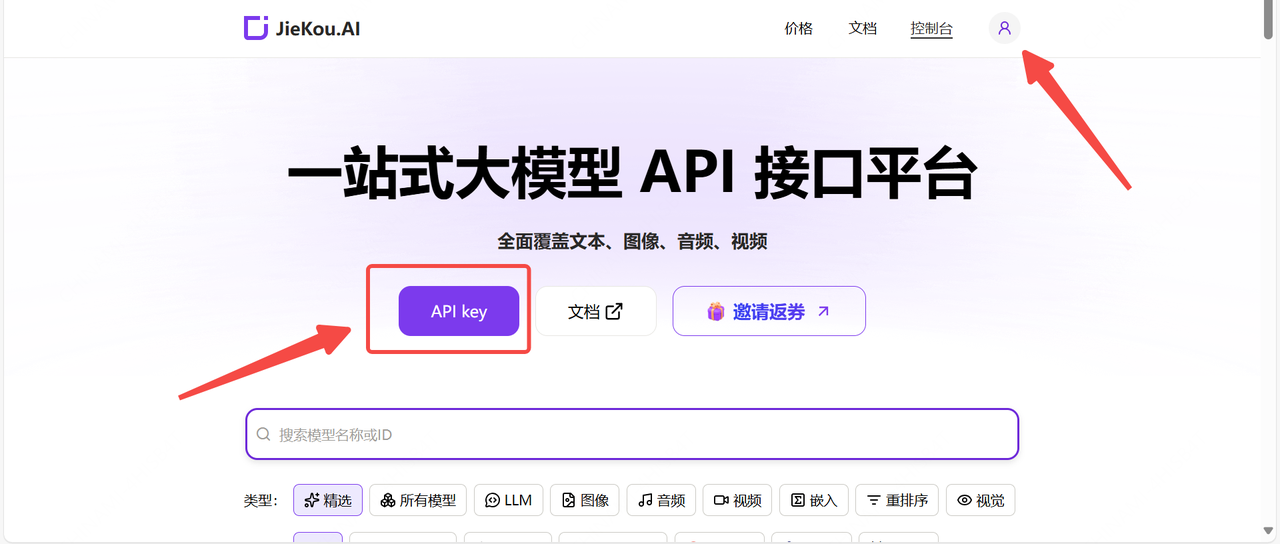
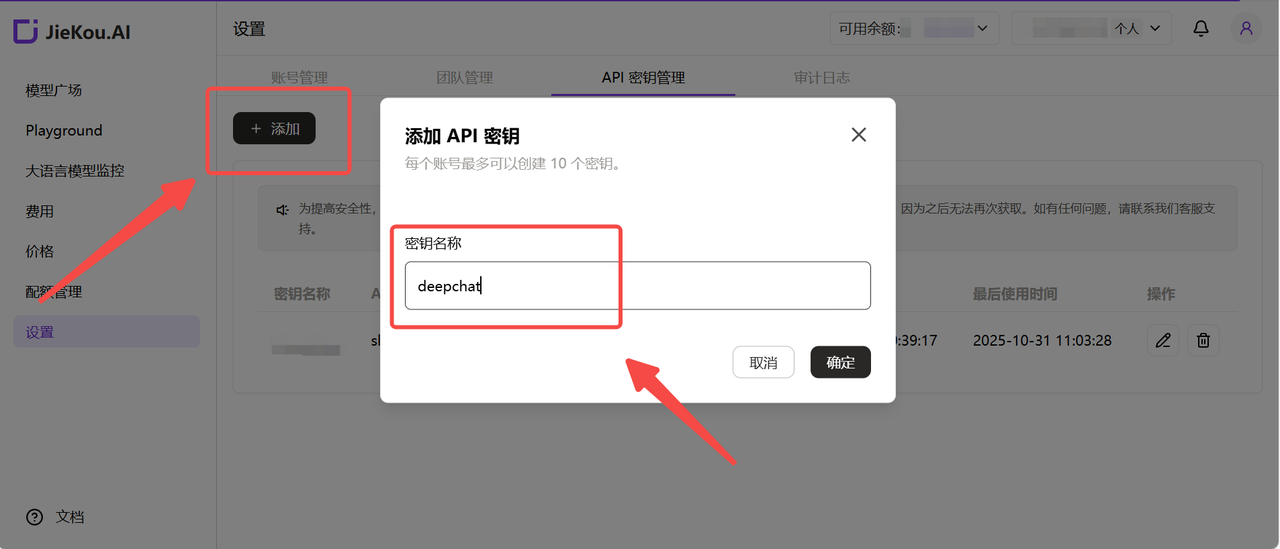
(2) Generate and Save the API Key
Note: The key is stored encrypted on the server and cannot be viewed again after creation. Please save your key securely. If lost, you will need to delete it from the console and create a new one.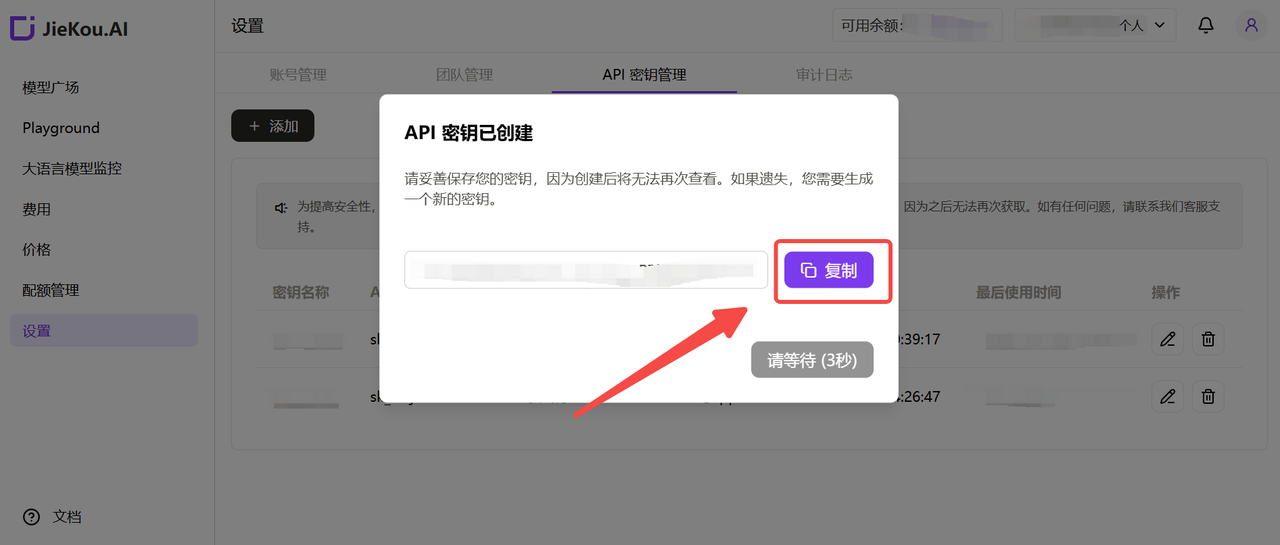
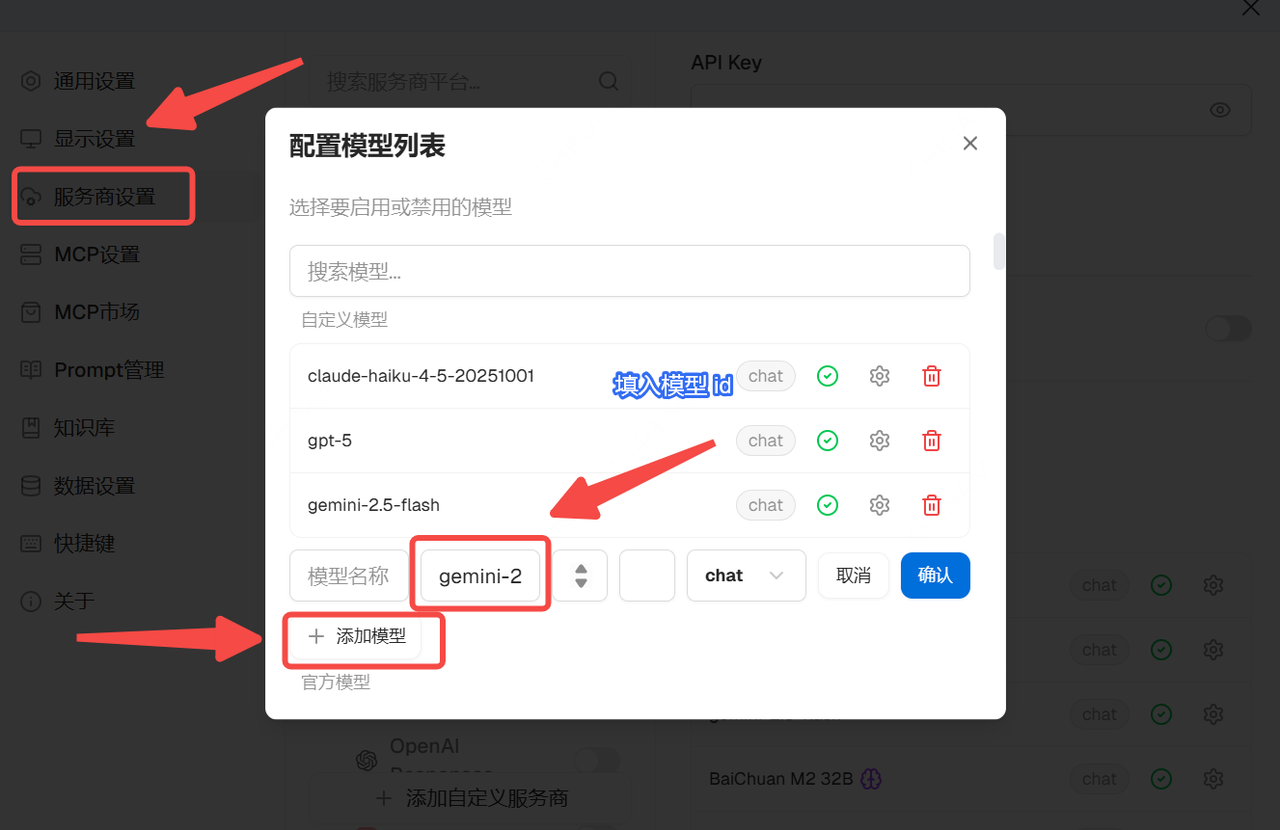
(3) Obtain the Model ID You Want to Use
Find the desired model in the Myrouter Model Hub and copy the model ID.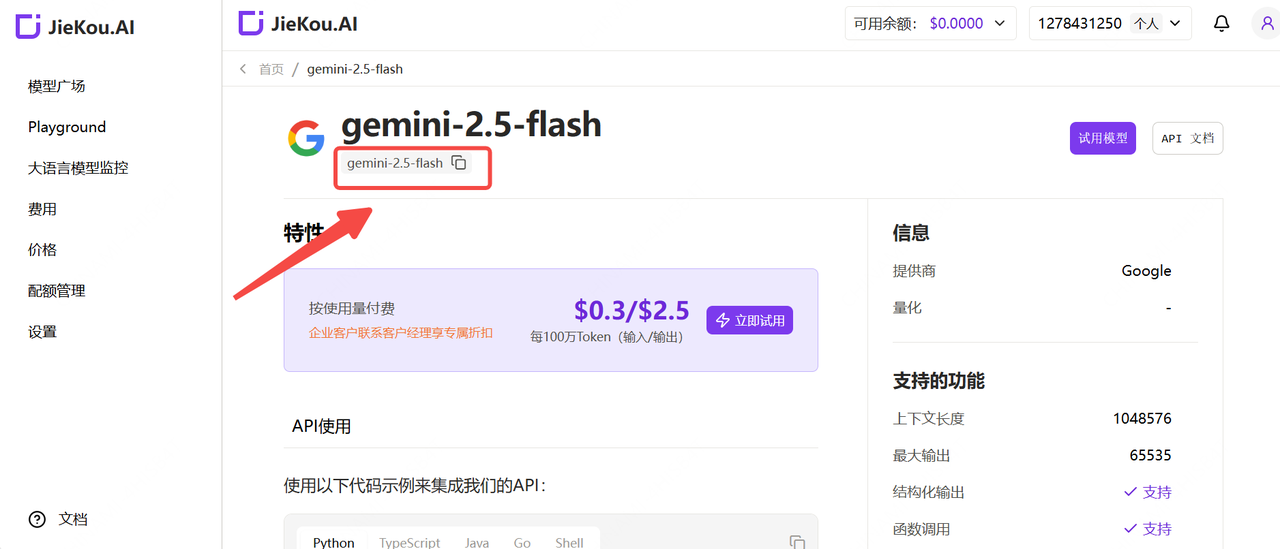
- Claude-sonnet-4-5
- Gpt-5
- Gpt-4o
- Gemini-2.5-pro
Software Configuration and Usage
(1) Download and Configure the Provider
Go to the DeepChat official website to download and install the software.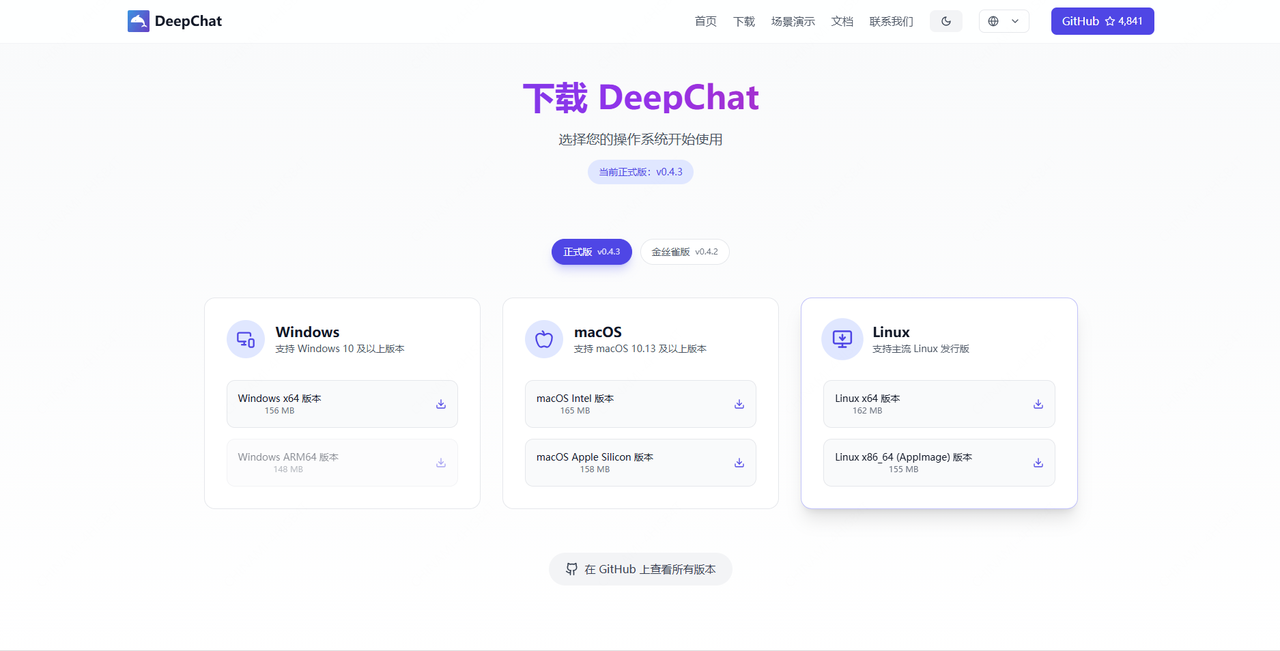
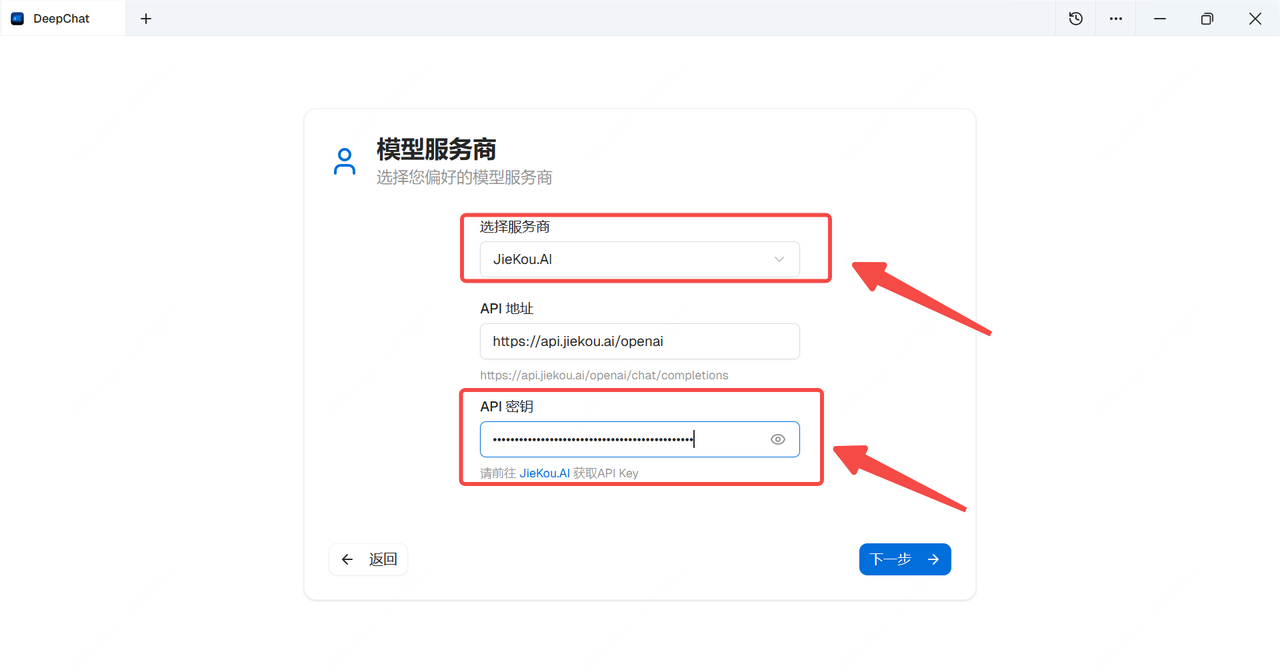
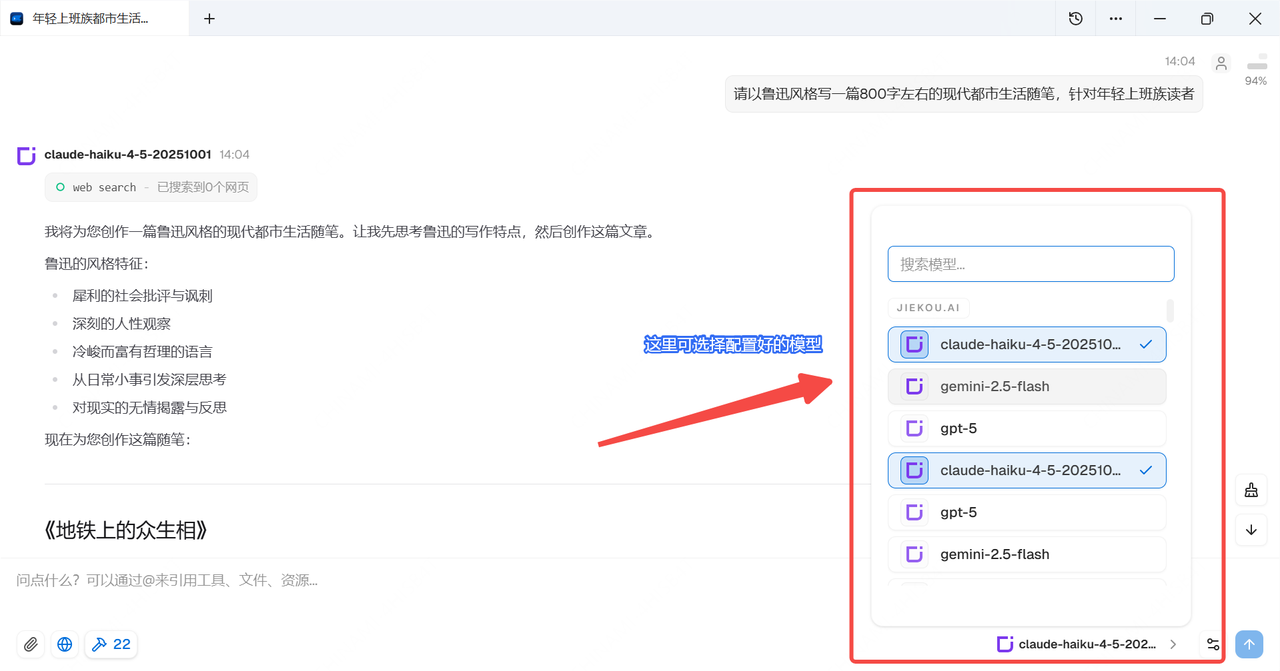
(2) Configure the Desired Model and Start Chatting