> ## Documentation Index
> Fetch the complete documentation index at: https://docs.myrouter.ai/llms.txt
> Use this file to discover all available pages before exploring further.
# DeepChat
DeepChat is an enterprise-grade intelligent conversation platform that leverages advanced large language model (LLM) technology to provide users with a smooth and natural dialogue experience.
It focuses on providing solutions for the following scenarios:
* Personal knowledge management: Integrate personal documents, notes, and knowledge to enable intelligent Q\&A and content generation.
* Enterprise knowledge base: Connect internal enterprise knowledge resources to provide team members with intelligent information retrieval.
* Custom conversation scenarios: Create domain-specific dialogue experiences through flexible model configuration and prompt engineering.
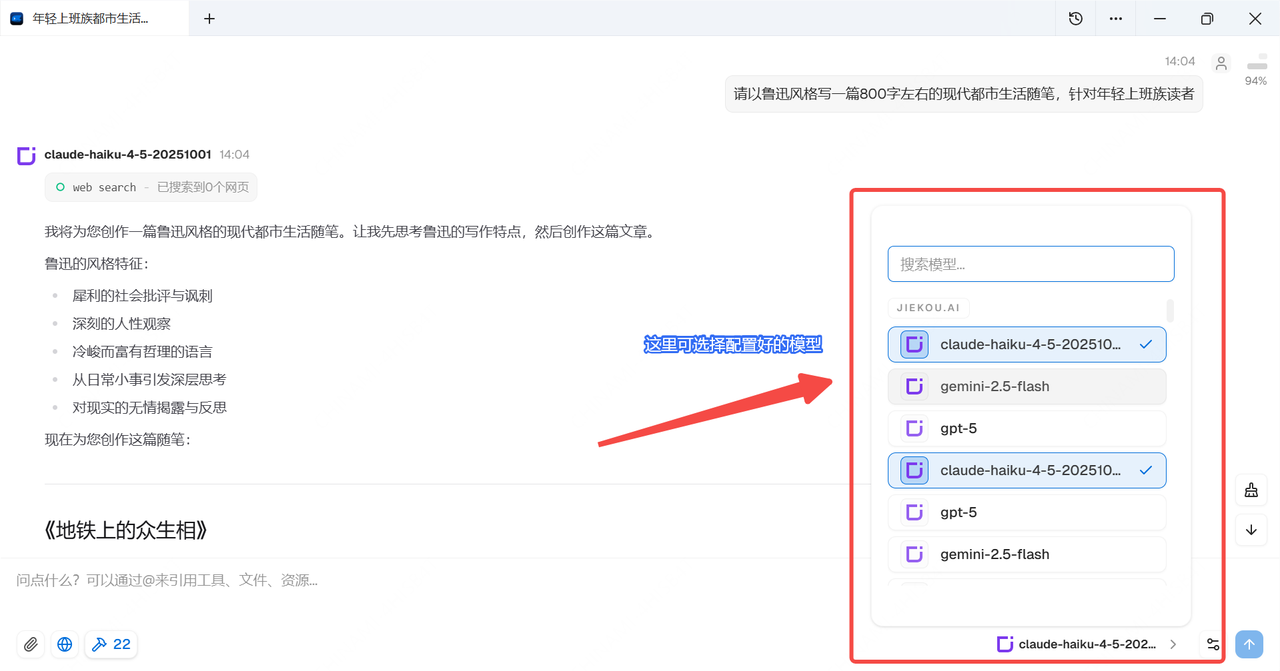
By integrating with Myrouter, you can easily connect to a wide range of domestic and international large models, including Claude-haiku-4-5, Gemini-2.5-flash, GPT-5, and other compatible models, enjoying greater flexibility and scalability.
In just 1 minute, we'll walk you through configuring Myrouter × DeepChat.
# Myrouter × DeepChat Configuration Guide
## Prerequisites
### (1) Obtain an API Key
Register and log in to Myrouter. Enter invitation code \[YGHNZ0] during registration to receive a \$2 sign-up bonus.
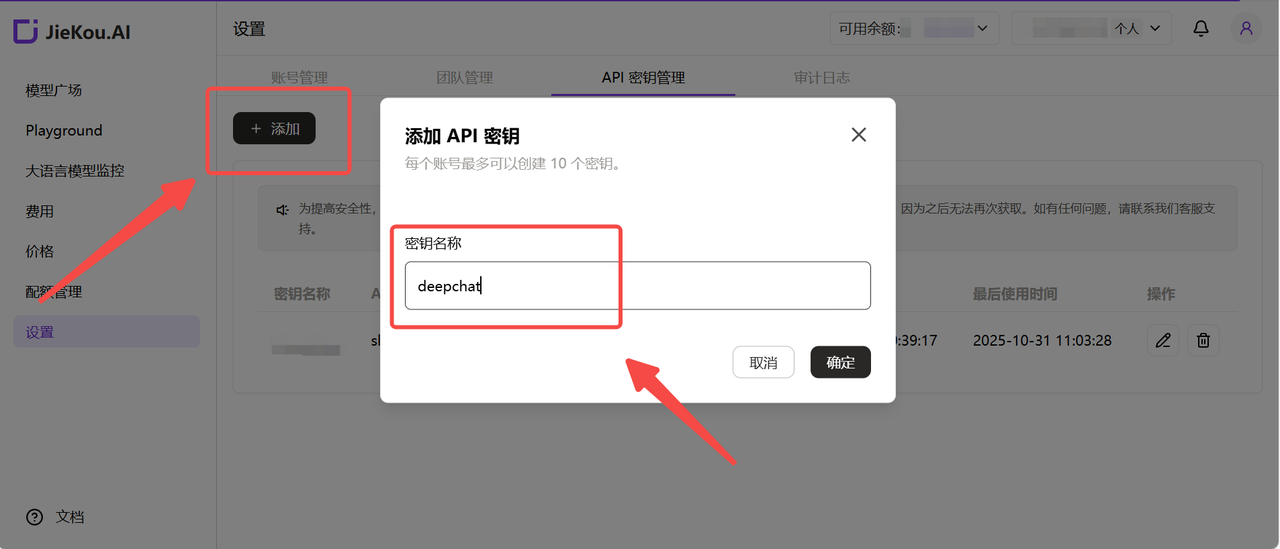
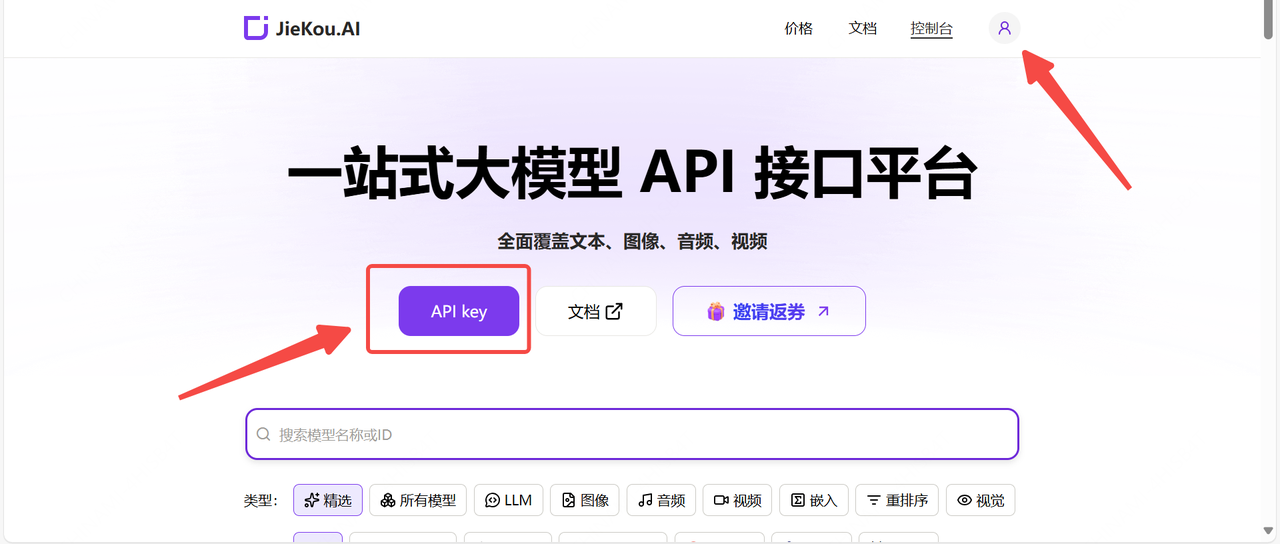 Open the \[API Key] management page, click the Add button, enter a custom key name, and generate an API key.
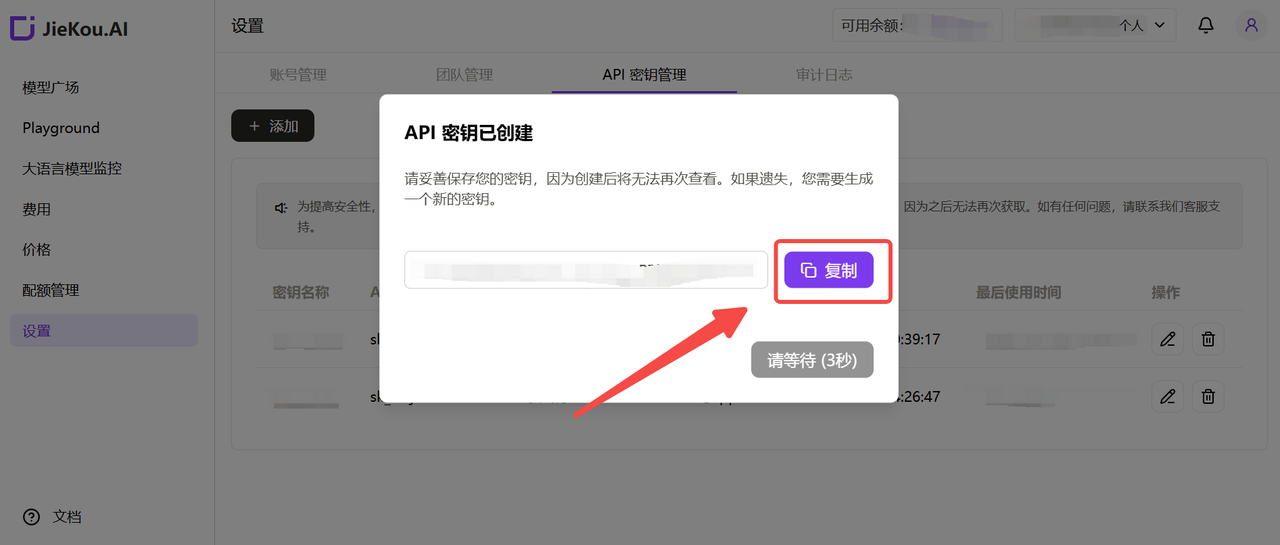
 ### (2) Generate and Save the API Key
Note: The key is stored encrypted on the server and cannot be viewed again after creation. Please save your key securely. If lost, you will need to delete it from the console and create a new one.
### (2) Generate and Save the API Key
Note: The key is stored encrypted on the server and cannot be viewed again after creation. Please save your key securely. If lost, you will need to delete it from the console and create a new one.
 ### (3) Obtain the Model ID You Want to Use
Find the desired model in the Myrouter Model Hub and copy the model ID.
### (3) Obtain the Model ID You Want to Use
Find the desired model in the Myrouter Model Hub and copy the model ID.
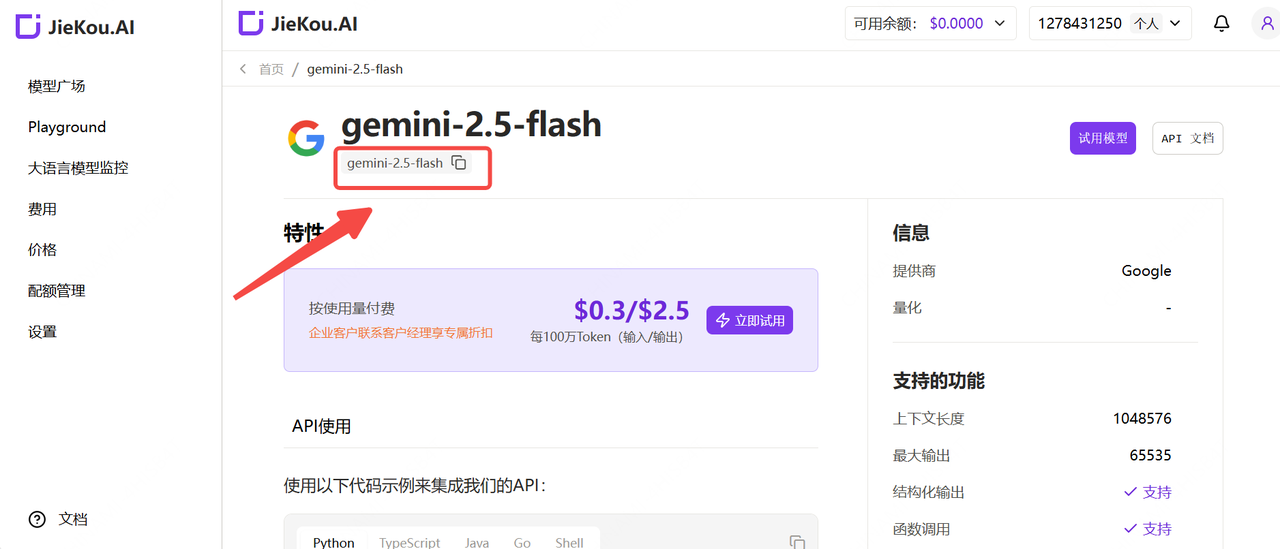 * Claude-sonnet-4-5
* Gpt-5
* Gpt-4o
* Gemini-2.5-pro
For other model IDs, maximum context lengths, and pricing, refer to the Model Hub.
## Software Configuration and Usage
### (1) Download and Configure the Provider
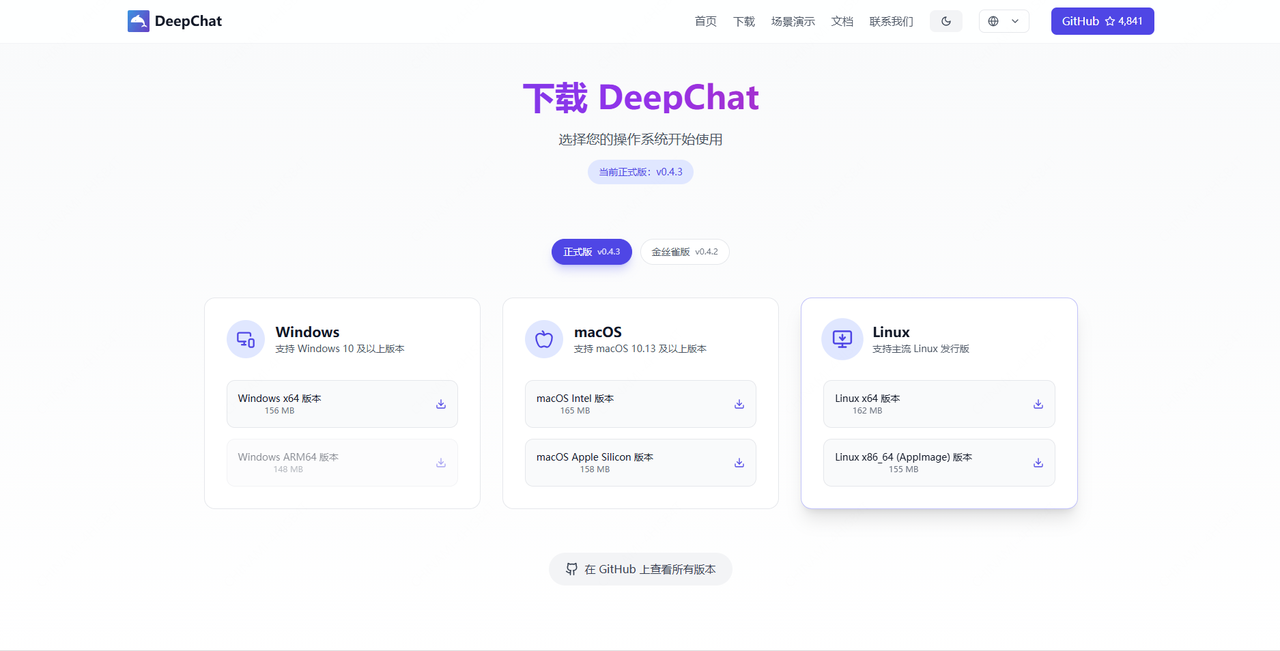
Go to the DeepChat official website to download and install the software.
* Claude-sonnet-4-5
* Gpt-5
* Gpt-4o
* Gemini-2.5-pro
For other model IDs, maximum context lengths, and pricing, refer to the Model Hub.
## Software Configuration and Usage
### (1) Download and Configure the Provider
Go to the DeepChat official website to download and install the software.
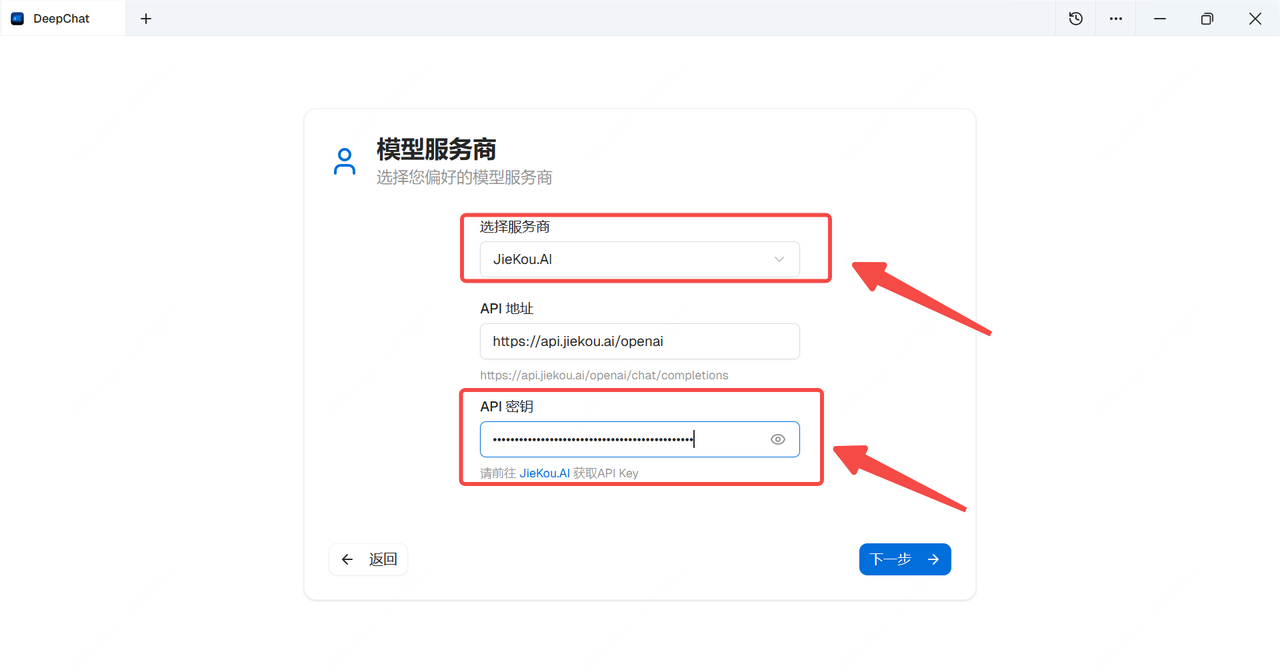
 Open the software, in \[Select Provider], enable the \[Myrouter] option, and paste the API key you copied earlier into the \[API Key] input field.
 ### (2) Configure the Desired Model and Start Chatting
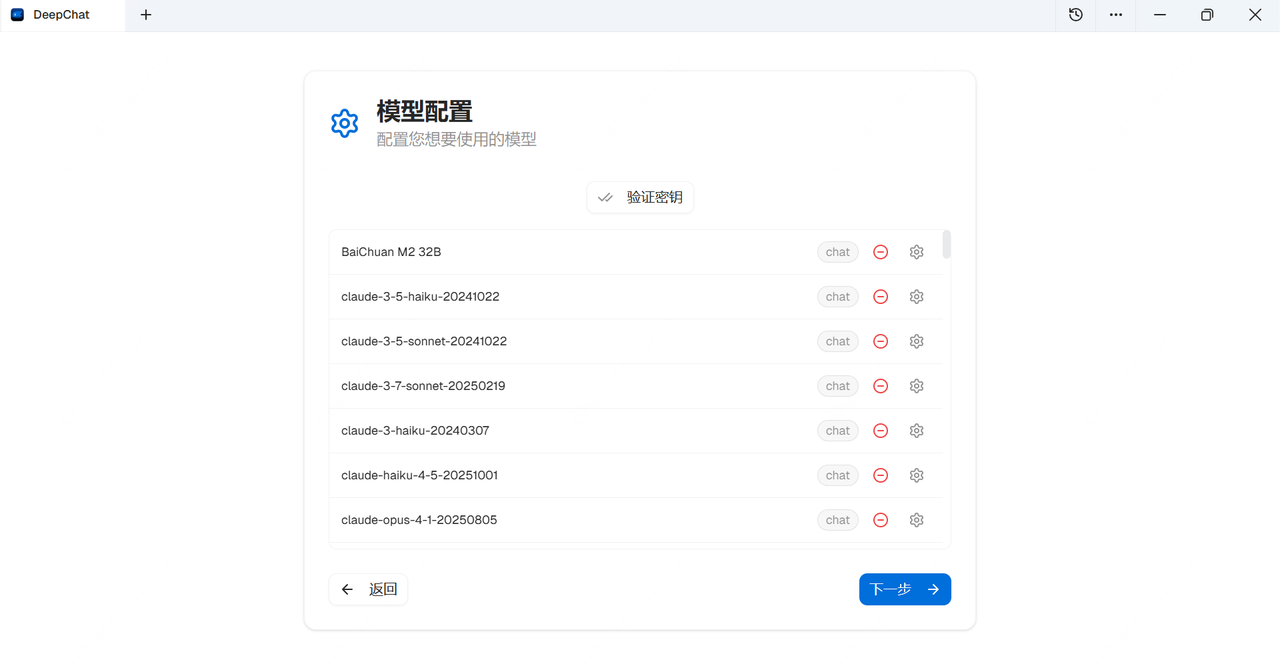 In DeepChat's \[Provider Settings], select Myrouter and configure the model list. Click \[Add Model], enter the model ID, and confirm.
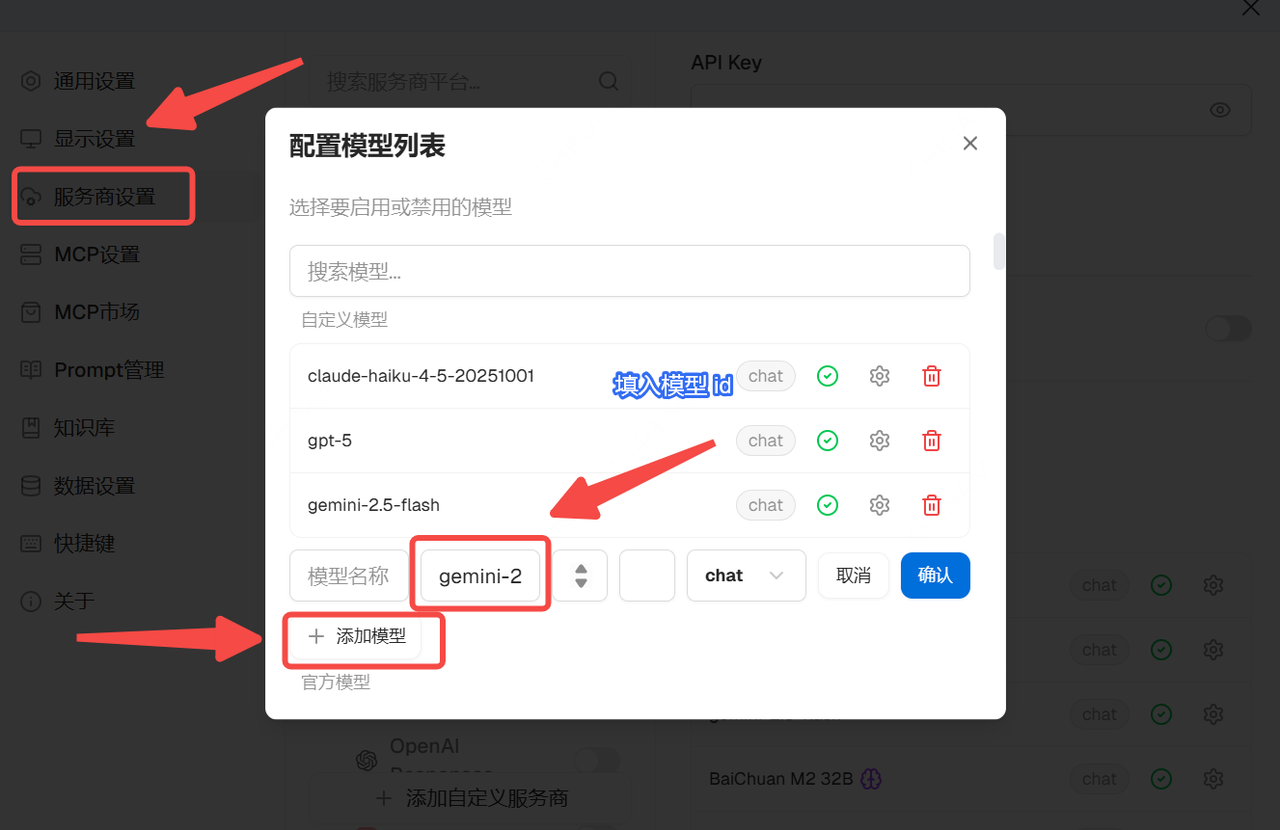 Now you can freely use large models in DeepChat!